Individual Project 2 Due Wednesday February 4, 2026 11:00am (EST)
Welcome back to the Game Nite team! In this second deliverable, you will be implementing new and exciting features to enhance the frontend interface and bring the web application to life. This assignment builds on the foundation you laid in the first project and will deepen your skills in frontend development with TypeScript and React.
The objectives of this assignment are to:
- Investigate and understand a large, existing codebase
- Implement interactive web applications with the React library
Changelog
- 2026-01-22: Correction to submission instructions, only the URL of your GitHub repository is needed.
- 2026-01-26: Corrections: there’s no “(Display name) left chat” message, and there are only two things to change in Task 3, not three.
- 2026-01-27: Correction: the upper-right corner of a 5x7 grid was described previously as
[6,0], and is now described correctly as[0,6]. - 2026-01-28: Correction: in task 2, “view your own profile and editing other people’s profiles” was exactly backwards. You edit your own profile and view other people’s profiles.
- 2026-01-31: Clarification to task 5: added the text “and the code you authored in Task 4.” You are expected to only change code you wrote in Task 4, but if you added additional files in Task 4, you can certainly modify them in Task 5.
- 2026-02-03: Clarification to task 5: 4 of the 8 points will be assigned based on us testing your implementation. You’re not required to write tests for your React code for this assignment.
1. Getting Started
Start by accepting our GitHub Classroom Invitation. It will create a Github repository for you which will include the starter code for this assignment. Run npm install in the root directory to fetch all dependencies for the client, server, and shared folders.
1.1 Optional but Highly Recommended: MongoDB
It’s much easier to work on the application if restarting the server doesn’t reset the entire application to an initial state.
Your starter code uses a proper repository layer, which connects to MongoDB through an adapter library called Keyv. You can install MongoDB on your local machine.
- Follow the instructions in the official MongoDB documentation to install the free community edition.
- Choose ‘Install on Linux’, ‘Install on macOS’, or ‘Install on Windows’, depending on your system. (the following steps are for Windows)
- Scroll down to the section labeled ‘Install MongoDB Community Edition.’ and click on MongoDB Download Center.
- For Windows, in the Package dropdown, select
msi. Then download and run the installer. - On Windows, select the “Install MongoDB as a Service” checkbox and install. This will start MongoDB as a background service.
- Install “MongoDB Compass” if prompted.
- Verify if the MongoDB server is running using the Windows Services app.
Mongo offers several methods of interacting with your Mongo databases.
-
MongoDB Compass is an interactive application for creating, modifying, and querying MongoDB connections. It should be started as part of the installation process, showing a connection to
mongodb://localhost:27017/.For Windows, install MongoDB Compass using the instructions above.
For Mac:
- Download the dmg file from here. Once the application starts:
- Click on “Add new connection” in the left sidebar.
- Make sure the URI field contains
mongodb://localhost:27017 - Click on “Connect” - MongoDB will need to be running as a macOS service
- Download the dmg file from here. Once the application starts:
-
Mongo shell (mongosh) provides a command-line interface that can be used to interact with databases in MongoDB.
For Windows:
- Download it here using the msi package. You can also use mongosh to see if the MongoDB server is running. Try the MongoDB Community Edition and the command
show dbs; you should see a list of existing databases in your local instance.
For Mac:
- Mongo shell is automatically installed with MongoDB through the Mac installation instructions. To use it, make sure MongoDB is running as a macOS service, then type
mongoshinto the terminal.
- Download it here using the msi package. You can also use mongosh to see if the MongoDB server is running. Try the MongoDB Community Edition and the command
1.2 Setting Up the Server To Use MongoDB
Create a file called server/.env — the dot before the “env” is important! Include the following text:
MONGO_STR=mongodb://127.0.0.1:27017
MONGO_DB_NAME=GameNiteLocalDev
This tells your server how to connect to the local MongoDB instance that you got running in the previous step. Now, you can start the application as before: in one terminal, run:
ip2-me $> npm run dev -w=server
Leaving that running, open another terminal and run:
ip2-me $> npm run dev -w=client
The application should work as before, but any changes you make in the application should survive restarting the server.
2. Recommendations When Working on the Project
- Have the frontend and backend running, and have the project open in your browser, while you are working. It’s very useful to have the website update as you make changes.
- Frequently add and commit changes with git. This saves your changes and makes it easy to go back to a state where most tasks were complete. The first three tasks are cumulative, as are the last three tasks, and if you run into trouble with Task 5, you will want to be able to backtrack to a working implementation of Task 4.
- Do not wait until the last minute to run
npm run lintandnpm run checkto check for linter and typescript errors! - Follow the debugging policy to help in the debugging process.
- Task 6 is more challenging than the other tasks, but is only worth 20% of credit. Don’t wait until the last minute to attempt this task if you intend to complete all parts of the assignment.
3. Project Submission
You will submit your code by pushing the final version into your repository (add/commit/push). All commits must be visible on the main branch on GitHub classroom to receive credit. Be sure to check if the correct version is submitted before the deadline.
On Gradescope, you will submit a plain .txt file containing a link to your project’s GitHub repo (e.g. https://github.com/neu-cs4530/ip2-robsimmons).
We will grade your code on GitHub by using the “Feedback” PR that is automatically created when the assignment is. The Feedback PR can be found under the “Pull requests” menu, like this:
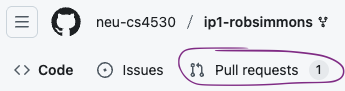
If you don’t see your Feedback PR for the assignment, let us know on Piazza (be sure to include your GitHub username in your post).
Grades will be assigned on Gradescope and synced to the Canvas Gradebook.
TypeScript ESLint, Vitest, and Configuration Files
The GitHub project contains a number of configuration files you may not modify. The files package.json, .prettierrc, tsconfig.json, vitest.config.mjs, and vite.config.mjs are examples of configuration files, as is everything in the .github directory. If you change any of these files, take care to change them back; the list of changes in the feedback PR should not show any changes to these files. You also may not include eslint-disable commands to disable ESLint’s checks in your final submission.
The code you submit must pass GitHub’s automatic checks, which mostly just amount to the TypeScript typechecker, the ESLint linter, and the tests. You can run these yourself like this:
ip1-me $> npm run prettier --workspaces
ip1-me $> npm run check --workspaces
ip1-me $> npm run lint --workspaces
ip1-me $> npm run test --workspaces
When you push your code to GitHub, you can see the status icon for your most recent submission. It’s initially a yellow circle, like this:

After the tests run, this will turn into a red ❌ or a green ✅. Clicking on the icon will let you see details of the tests we ran.
The Actions tab on GitHub has the results of previous runs.

Up to 25% of your total grade on the assignment may be deducted for CI failures (5% for Prettier failures, 10% for TypeScript failures, and 10% for ESLint failures). In severe cases we may decline to grade your assignment entirely. Give yourself sufficient time to find and fix any errors. ESLint warnings do not cause CI to fail and will not automatically lead to a deduction, but it is bad practice to have lots of console statements in your code, and this can lead to a point deduction if it makes it hard for a TA to understand your code.
4. Implementation Tasks
Task 1: Navigating to Other Profiles
Currently, going to the “Profile” link at the top of your page takes you to the path /profile/<yourusername>. Change client/src/components/MessageList.tsx so that clicking on the users’ display name in chat takes you to the path /profile/<theirusername>. For example, if you are logged in as user0 and you see a chat message from “Yāo” (the display name for user1), that should be a <NavLink> that takes you to /profile/user1.
This task is worth 10 points, based on checking that chat navigation works as expected.
Task 2: Viewing Other Profiles
Change client/src/pages/Profile.tsx so that, if you are logged in as user0 and navigate to /profile/user1, you see a page that allows you to see but not edit that user’s username, display name, and when their account was created.
You may want to split this file into two or three new files, since the route to profile pages is now being used for two different purposes: viewing and editing your own profile, and viewing other profiles. Check client/src/services/userService.ts for a useful helper function.
This task is worth 25 points:
- 10 points will be based on functionality.
- 15 points will be based on appropriately refactoring your code into multiple files with appropriate code style.
Task 3: More Profile Navigation
The code you changed in Task 1 was only one place where user display names were referenced. Here are some others:
- The “(DisplayName) entered chat” messages in chat
- The “Player #2 is (DisplayName)” messages in the game panel
- “Posted by (DisplayName)” in forum messages
- “Reply by (DisplayName)” in forum comments
- “(Display name) created 1 day ago” on the home page and the game list and forum list pages
For this task, you’ll make threetwo changes to all display name locations:
- Consistently refer to the current logged-in user by the second-person pronoun “you,” instead of by their display name. (The exception is the “signed in as (DisplayName)” message in the header — leave that alone.)
- Consistently link other users’ usernames to their profile. References to the current user (“you”) should not link to the current user’s profile.
This task is worth 15 points:
- 1 point for each of the 2 changes in each of the 5 places where display names occur.
- 5 points for style and organizing your code in a way that minimizes duplication.
Task 4: Mine Finder
The backend has been implemented for Mine Finder, a game with a strong but legally-permissible resemblance to Microsoft’s Minesweeper game.
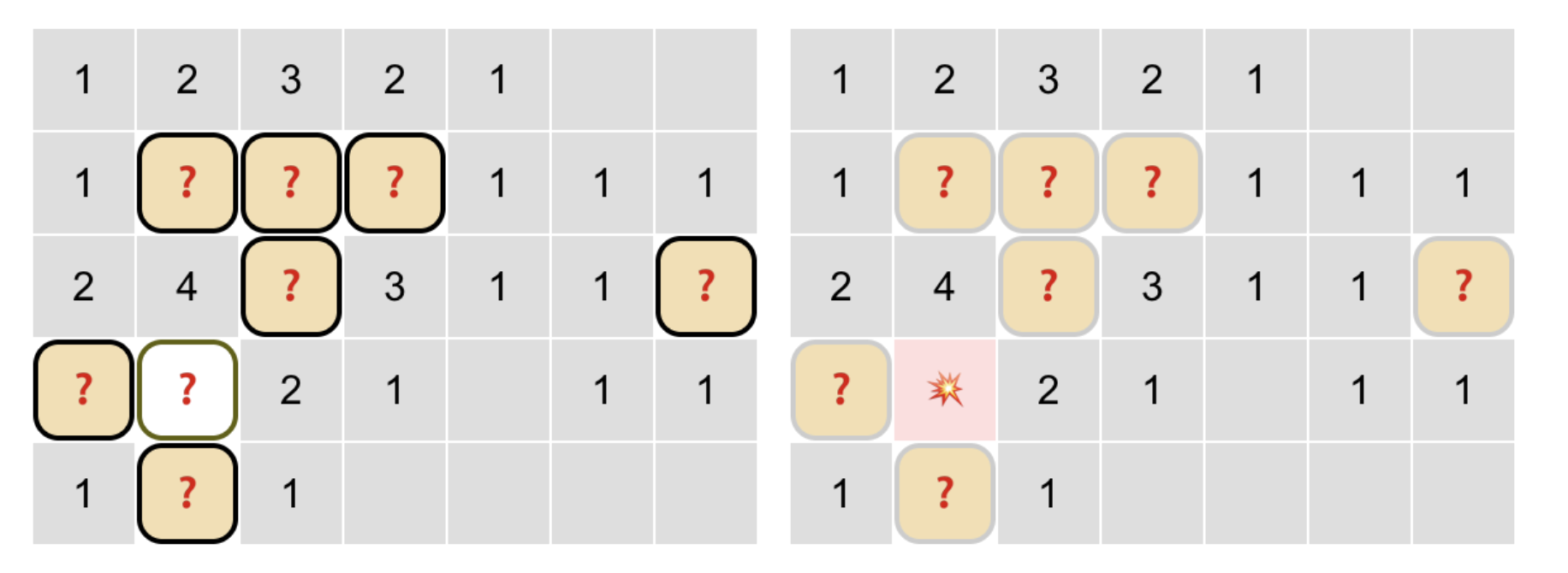
(You do not need to use CSS to match the exact style shown here, you just need show a grid that allows the game to be played or watched successfully. The only required CSS properties are described in the conditions of satisfaction below.)
In Mine Finder, your game starts with a 6x6 or 5x7 grid containing five randomly-placed mines. Clicking on a grid position sweeps it, revealing how many of the eight adjacent grid positions contain mines — or exploding and ending the game if there is a mine in that grid position! When a grid position is revealed to have zero mines, all eight adjacent grid positions are automatically swept.
The backend logic for Mine Finder is implemented, and you can read the description of types in shared/src/games/minefinder.types.ts, the implementation in server/src/games/minefinder.ts, and the tests in server/tests/games/minefinder.spec.ts. The frontend implementation in client/src/games/MineFinderGame.tsx is the only part that is completely missing, and you will implement the game’s frontend in React for this task.
The task is worth 22 points, two points for meeting each of the following conditions of satisfaction:
- Unswept grid positions should contain a question mark
❓, unless the game has been won (view.state === 'won'), in which case they should contain a🎉emoji. (Mines are not revealed on loss.) - Swept grid positions with no neighboring mines should appear empty.
- Swept grid positions with neighboring mines should contain the number of neighboring mines (unless the grid position itself contains a mine).
- Swept grid positions revealing a mine should contain a
💥emoji. - Swept grid positions should have the
cursor: defaultCSS property set. - Non-players should always see all grid positions with the
cursor: defaultCSS property set, and clicking anywhere on the grid should never send a message or make a move. - If the game is not over (
view.state === 'playing'), the player of the game should see unswept grid positions with thecursor: pointerCSS property set. - If the game is not over, the player of the game should be able to “sweep” a grid position by clicking on it: clicking on the upper-right grid position of a 5x7 grid should submit the game move
[0,6](moves are described by row first, column second). - If the game is over (
view.state !== 'playing'), the player of the game should see all grid positions with thecursor: defaultCSS property set, and clicking anywhere on the grid should never send a message or make a move. - If the game is over, the player of the game should see the message “You won” or “You lost”, as appropriate, below the game grid.
- If the game is over, non-players should see “(DisplayName) won” or “(DisplayName) lost”, as appropriate, below the game grid, where “(DisplayName)” is replaced by the player’s display name. The display name need not link to the player’s profile.
Your implementation does not need to look like the example image above. It must be possible for a TA to effectively test a conditions of satisfaction in order to award points.
Task 5: Marking Mines
For this task, you will not change the Mine Finder logic on the server or anything else outside of MineFinderGame.tsx and the code you authored in Task 4; the goal is to use React state to implement a feature.
It’s very helpful to be able to flag a grid position as a known mine while playing Mine Finder. Without giving the backend any support for flagging grid positions, you can use React state to record and add flags. Storing flags in React state attached to the MineFinder React component has some drawbacks: only the player can see flags, and if a player navigates away and returns, all their flags will be gone. That is fine for the purposes of this task.
When a player right-clicks on a grid position with a ❓ in it, that question mark should be replaced with a flag ⛳. Left-clicking a flagged grid position should have no effect — a flag should keep you from accidentally setting off a mine. Right-clicking a grid position with a flag should unflag the grid position, returning it to a ❓ and making it clickable again.
Winning the game should cause all remaining cells to display 🎉 regardless of whether they had previously been flagged.
You can capture right clicks by adding an onContextMenu property alongside the onClick handler you added in the last part. Because the default behavior of a right-click is to open a context menu, you’ll need to call preventDefault on the event (this was demonstrated in lecture for preventing a button click from submitting a form). Here’s a very simple example of using preventDefault with onContextMenu: https://codepen.io/Ishika-Reddy/pen/XJKgWqK.
This task is worth 8 points. 4 points will be assigned based on our manual testing of your implementation, and 4 points will be assigned by looking at your code and verifying that you are using React state appropriately.
Task 6: Mine Difficulty
GameNite’s user researchers come to you with two different user stories they discovered when testing the new game:
As a novice mine finder, I want access to easier and more forgiving puzzles, so that I can develop my skills without getting discouraged.
As an expert mine finder, I want access to more challenging puzzles, so that I can show off my advanced logical skills.
In this task, you’ll meet the needs of these users by modifying the Mine Finder game to allow for an initial difficulty selection. This task will require substantial changes to all the parts of your project: the server, the client, the shared code and Zod validation logic for moves, and the tests.
When a new single-player game of Mine Finder begins, the user should be shown a drop down menu with three choices, “Easy”, “Standard”, and “Hard”, and the “Standard” button should be selected by default. There should be a submit button that sends a move that is just the string “easy”, “standard”, or “hard”. Sending that move should trigger the backend’s Mine Finder logic to generate a board and start a game.
You can decide what “easy” and “difficult” actually mean, within reason and the following constraints:
- An “Easy” difficulty game must have no more than 36 positions arranged in a rectangular grid, and at most 5 mines. Exposing one mine in an “easy” game shouldn’t be an automatic loss: players only lose when two mines are exposed.
- The “Standard” difficulty game should work like the version of the game you implemented in the previous tasks: a randomly chosen 6x6 or 5x7 grid with 5 mines.
- A “Hard” difficulty game must have at least 40 grid positions arranged in a rectangular grid, and more than 1/6 of the positions should be mines.
While playing, the difficulty level should be visible somewhere for both the player and for spectators.
Hint: you will likely want to transform both the MineFinderState and MineFinderView types so that the game can exist in different states: not started, and started. In the starter code, MineFinderState looks like this:
export interface MineFinderState {
  width: number;
  height: number;
  board: boolean[][]; // each array is one row
  clicked: boolean[][]; // each array is one row
}
However, in the modified game, it will no longer be possible for the start() function to initialize a board: start() gets called before difficulty is selected, and width and height are dependent on the difficulty level.
Therefore, the new state should be some sort of a discriminated union, perhaps something like this:
export type MineFinderState =
  | { state: "waiting" }
  | {
      state: "started";
      width: number;
      height: number;
      board: boolean[][]; // each array is one row
      clicked: boolean[][]; // each array is one row
    };
You are not required to use precisely this type; part of the task is figuring out what your MineFinderState type needs to be. Part of the challenge of this assignment is developing reasonable solutions to behaviors we haven’t specified: for example, what do you think spectators should see while the player is choosing a difficulty? This should be reasonable and not obviously broken, but the details are up to you.
This task is worth 20 points:
- 4 points for implementing difficulty selection
- 4 points for implementing hard mode
- 4 points for implementing easy mode (ironically, because you are allowed to explode one mine and still win the game, easy mode is harder to implement than hard mode)
- 4 points for fixing existing tests and having >=95% line and branch coverage for
shared/src/games/minefinder.ts, adding new tests as appropriate - 4 points for code style and appropriate documentation of helper functions.
5. Grading Summary
The assignment as a whole is worth 100 points.
- Task 1: 10 points
- Task 2: 25 points
- Task 3: 15 points
- Task 4: 22 points
- Task 5: 8 points
- Task 6: 20 points